Setting Up Python Formatting in VS Code with Black and isort
Want to make your Python code look clean and consistent without thinking about it? This guide will show you how to configure Black, isort, and Mypy in VS Code to automatically format your code and organize imports every time you hit save.
Why Use These Tools?
Black is an opinionated Python formatter that takes care of all your formatting decisions.
isort keeps your import statements neat and organized, sorting them alphabetically and grouping them properly.
Mypy is a static type checker that helps catch type-related bugs before you run your code. It’s optional but highly recommended for writing more robust Python.
Installation Steps
First, let’s install the Python packages. Open your terminal and run:
pip install black isort mypy
If you’re on a system where pip3 is the default (like some Mac setups), use:
pip3 install black isort mypy
Next, install the VS Code extensions from the marketplace:
VS Code Configuration
Now we have to configuring VS Code to use these tools automatically.
Press Cmd + , (Mac) or Ctrl + , (Windows/Linux) to open VS Code settings. Click the document icon in the upper right corner (red outlined square) to open settings.json:
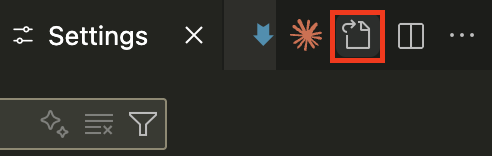
Add this configuration to your settings.json. This setup will automatically format your Python code and organize imports whenever you save a file:
{
  "[python]": {
    "editor.formatOnSave": true,
    "editor.defaultFormatter": "ms-python.black-formatter",
    "editor.codeActionsOnSave": {
      "source.organizeImports": "explicit"
    }
  },
  "isort.args": ["--profile", "black"],
  "mypy-type-checker.reportingScope": "workspace"
}
What Each Setting Does
editor.formatOnSave: Runs Black automatically when you saveeditor.defaultFormatter: Sets Black as your Python formattersource.organizeImports: Runs isort to organize imports on save (using"explicit"means it only runs when you manually save, not on auto-save)isort.args: Configures isort to use Black’s line length and stylemypy-type-checker.reportingScope: Ensures Mypy checks all files in your workspace
Optional Settings
If you want more control over Mypy’s behavior, you can add these additional settings:
{
  "mypy-type-checker.args": ["--follow-imports=silent", "--show-column-numbers"]
}
That’s it! Now every time you save a Python file, your code will be automatically formatted and your imports will be organized.